
2. Connect Gmail
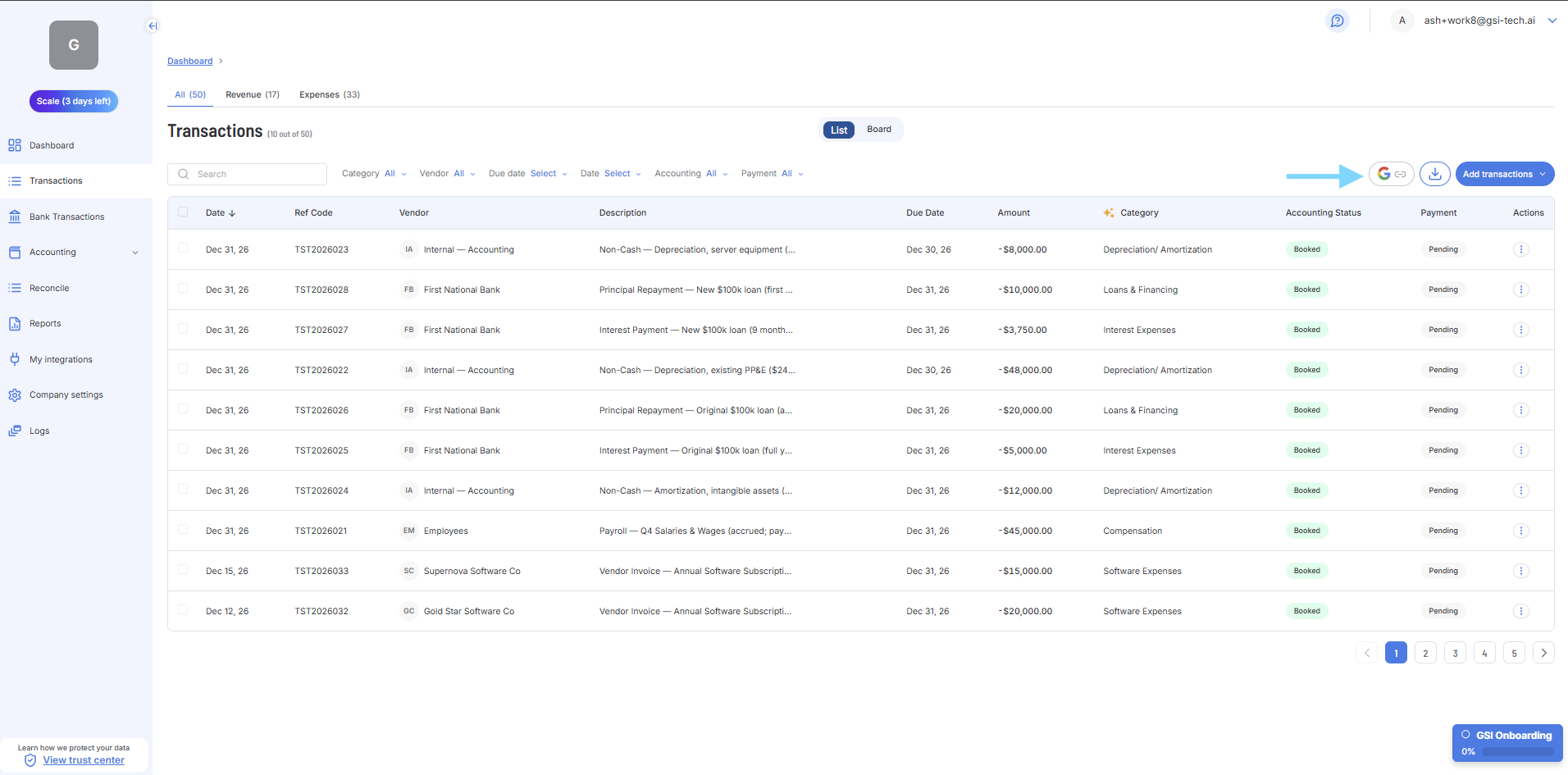
Go to: Transactions — https://app.gsi-tech.ai/dashboard/transactions
Step | What to do |
|---|---|
1. Open Transactions | Click 'Transactions' in the left sidebar. |
2. Click Connect Gmail | A 'Connect Gmail' banner appears at the top of the Transactions page — click the button inside it. If the banner is not visible, Gmail is already connected. |
3. Authorize Google | Select your business Gmail account in the Google sign-in window and select the folder for the invoices or bills. Grant GSI permission to read emails. GSI reads only emails that look like invoices or receipts. |
4. Wait for the first scan | GSI scans your designated folder. This may take a few minutes for large inboxes. |
5. Review what was found | New transactions from Gmail appear in Transactions for your review. Check that each one is categorized correctly. |
First Gmail scan note
- The first scan may surface 20–100+ items depending on your email history.
- You may not need to review them all now — work through them in First Time Using Articles.
- Going forward, new invoices and receipts import automatically as they arrive.
Next → Enter your Opening Balance Sheet